Help Center
Practical answers for every working day.
Choose the path that matches how you use Shiftriva. These guides describe current behavior and call out features that still need configuration or development.
For individuals
Create a job
On mobile, open Settings → Jobs, add the job name and hourly rate, then save. Keep multiple jobs separate so shifts use the right rate.
Import a schedule
Open Timesheet → Import schedule, choose CSV, Excel or ICS, review the detected columns, dates, times, jobs and duplicates, then confirm the rows you want. Unusual files can use manual mapping.
Automatic or Manual Mode
In Settings → Preferences, choose Automatic to estimate work from eligible schedule timestamps, including past shifts. Choose Manual to keep schedules planned until you record actual work. Actual clock records override schedule estimates.
Edit a shift
Open the shift in Timesheet, choose Edit, adjust dates, times, job, break or notes, then save. You can also mark a personal planned shift not worked or delete it.
Configure breaks and pay rules
Use Settings → Pay rules for overtime and applicable premiums. A paid break stays in paid time; an unpaid break reduces it. Review the estimate after changes.
Read earnings estimates
Home and Reports show expected gross, not confirmed payment. Future work stays in forecast. Compare against your own records if a rate, break or schedule is wrong.
Compare a payslip
Open the mobile payslip comparison, select a pay period, enter figures or import structured CSV/Excel, and inspect differences. AI image/PDF reading needs configured access.
Export and account data
Use Settings → Data for currently available local import/export options. Personal web sync is not connected, so keep your own export before changing devices. Use Account for identity and deletion controls when signed in.
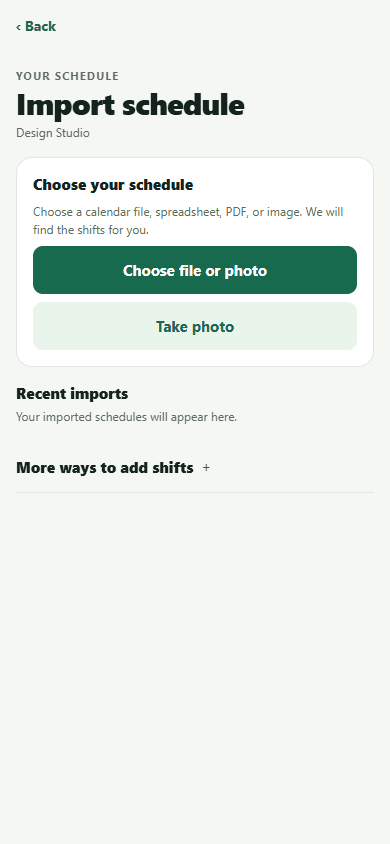
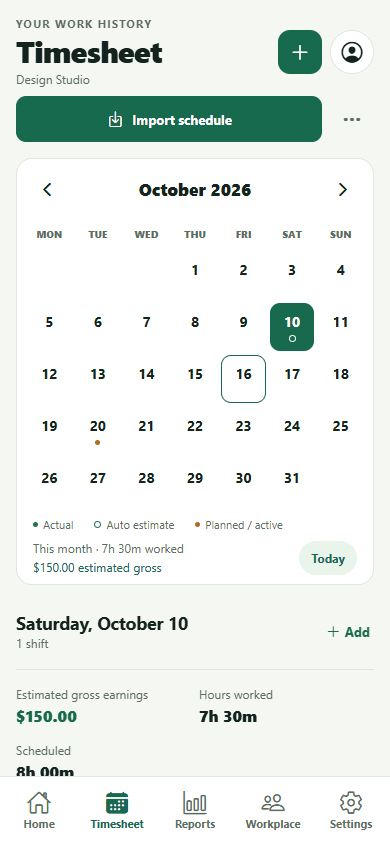
First open Import schedule, then review and confirm your file. The upload capture shown here is the empty state; the calendar capture uses sample shifts and is not a recording of the same import.
For employees
Join a company
Accept the invitation from your employer using your Shiftriva account. Keep the organization selected in the Business workspace; Personal data remains separate.
See assigned shifts
Open Business on mobile while signed in. The app syncs published assignments when opened or reconnected and retains the last local schedule for offline viewing.
When a shift changes
A manager must publish the change. Reopen or reconnect the app to fetch the current revision. Push alerts require device permission and configured delivery, so they are not the only way to learn of changes.
Record actual work
Use the available Business clock controls to record start, breaks and end. A planned shift alone is not verified attendance or an approved timesheet.
Premium and employer access
Employees do not need Personal Premium to access employer-managed schedules. Personal Premium, if launched later, covers individual features.
For managers
Create an organization
Finish your profile, choose Organization, create the workplace and select it in the portal. Switching organizations does not merge their data.
Invite and manage people
Use Employees and Teams to invite staff privately, assign team membership and keep access scoped to your organization.
Create a schedule
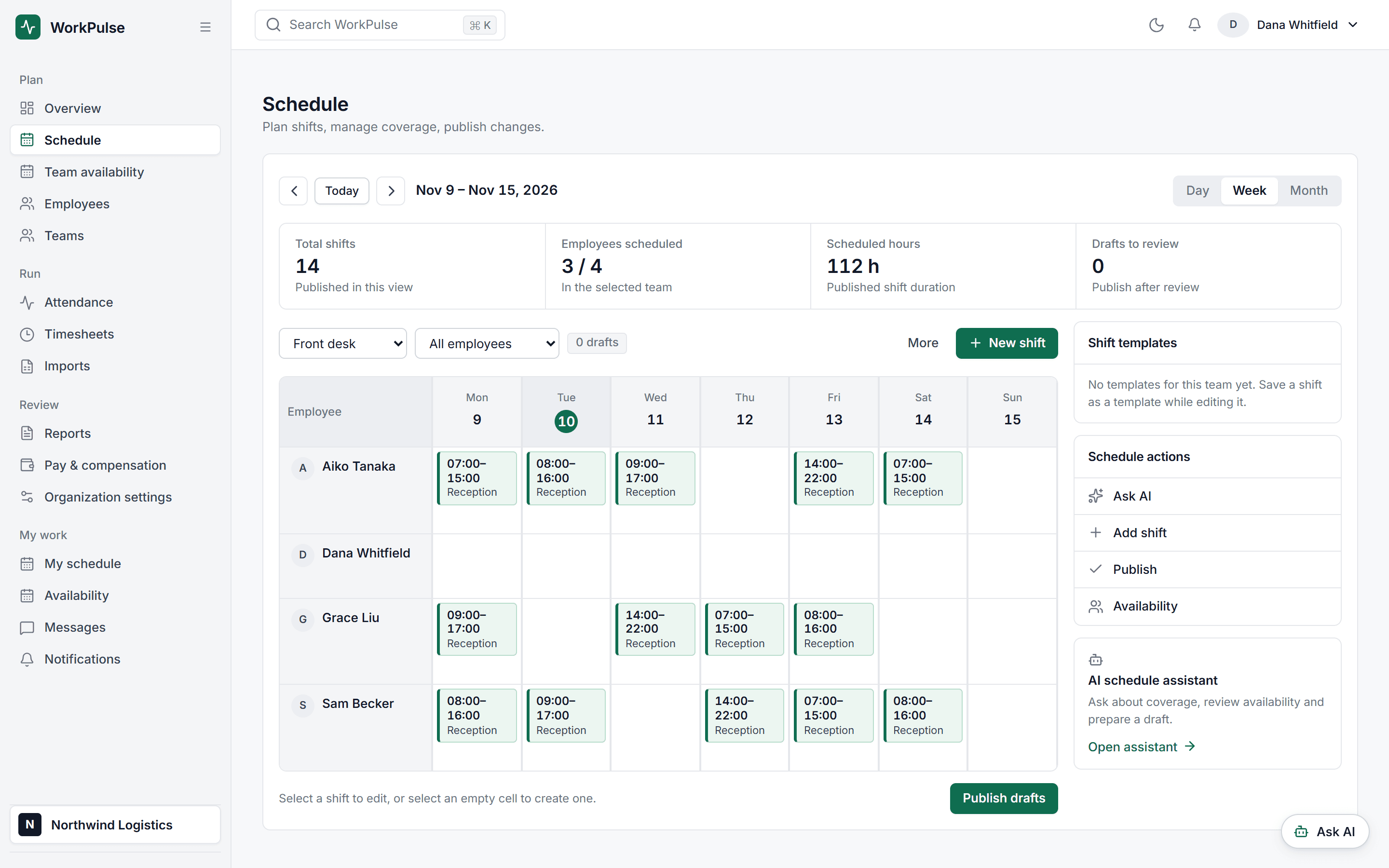
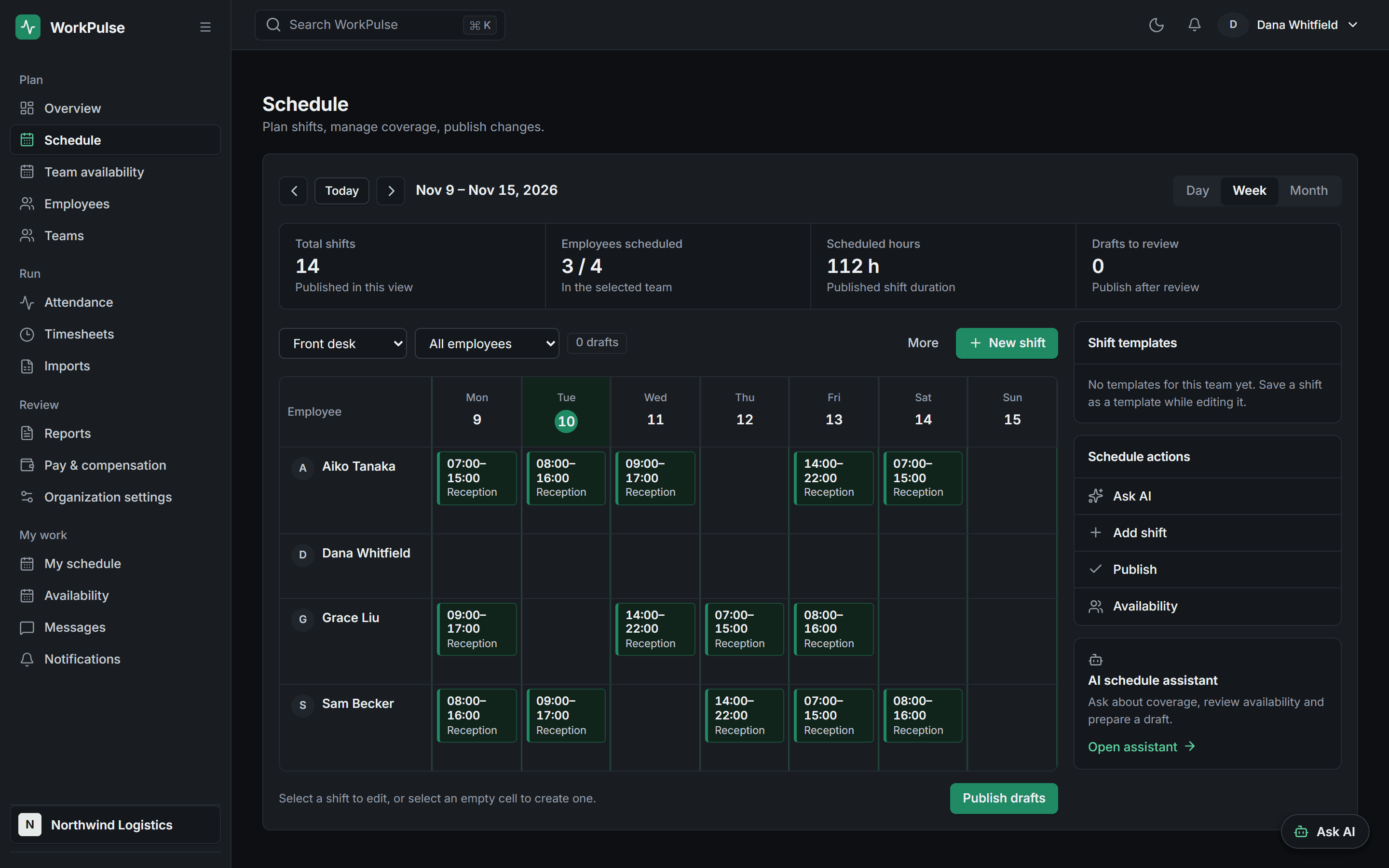
Open Schedule, choose a week and team, add shifts with employee, time and break. Review conflicts before publication. Dragging is available where supported; the edit drawer is the keyboard alternative.
Import a roster
Open Imports, upload CSV/Excel/ICS, correct mappings, resolve unmatched employees and conflicts, and confirm selected rows into drafts. Import does not publish automatically.
Publish and revise
Review drafts, choose Publish changes, and resolve a revision conflict if another manager published first. New publication creates employee change events.
Review attendance and timesheets
Open Attendance and Timesheets to compare clock records with scheduled hours, inspect late or missing clock-out cases, then approve or reject with a reason. Original clock records remain intact.
Reports and payroll
Reports can show real scheduled and actual hours with base labor estimates when rates are configured. These are estimates for payroll preparation; run final pay in your payroll system.
Billing and subscriptions
Business plans use regional Stripe prices. Creating an organization does not charge it. The organization billing portal shows verified prices and trial terms before Checkout.
Common questions
Why are scheduled and recorded hours different?
Scheduled hours describe the plan. Recorded hours come from actual clock records; Automatic Personal Mode can add schedule-derived estimates, labeled as estimates rather than verified attendance.
Will creating an account back up my Personal shifts?
No. Personal records in the mobile app stay on your device and are not copied to your account, so keep your device backed up and do not uninstall the app if you need them. Personal records you create on the web are stored in your account.
Why did I not receive a push alert?
Device permission, APNs/FCM credentials and delivery must all be configured. Open or reconnect the app to synchronize the published schedule even without a push.
Can I cancel a subscription?
Purchase availability depends on your platform and configured store. Review the price, renewal, and cancellation terms in the store or Stripe Checkout before confirming a purchase.